Online Music Visualizer: How It Works and What to Check
Update, 20 November 2026: Shimga's free exports now go up to 720p at 30 fps with a small "Made with shimga.app" watermark, and Pro elements and templates are included. 1080p to 4K, 60 fps, exports without the watermark and videos over 5 minutes need Shimga Pro or credits. Where this article mentions free 4K or no watermark, it describes the earlier free tier.
Short answer: An online music visualizer is a browser tool that turns an audio file into animated, beat-synced visuals and exports them as a video, with nothing to install. In Shimga Studio you can build, preview and export without signing in or paying, and standard MP4 exports (currently up to 4K and 5 minutes) carry no watermark.
Last updated 21 October 2026.
What is an online music visualizer?
An online music visualizer is a web-based tool that converts audio (a track, a podcast episode, a DJ mix) into animated visuals synchronised to the sound, entirely inside your browser. You open a URL, drop in an audio file, choose a preset and export a video. There is no download, no codec installation and no GPU driver juggling.
Compared with desktop software such as After Effects or a DAW plugin, a browser tool is always on the latest version, works the same on Windows, macOS, Linux and Chromebook, and does not need a licence per machine. The trade-off is that it depends on your browser and your device's graphics hardware, and it is not a full video editor.

Photo: Caio on Pexels
How do browser-based visualizers work?
The browser decodes your audio with the Web Audio API and measures it frequency by frequency. That data drives every visual element: bar heights, particle speed, waveform shape, glow. Rendering uses hardware-accelerated graphics (WebGL), so complex scenes with many particles can run smoothly on an ordinary laptop.
For export, Shimga does not record your screen. It analyses the whole track offline, then renders each video frame from the exact moment of audio it belongs to and encodes the frames to MP4 using the browser's WebCodecs encoder. That is why the visuals stay locked to the music even if your computer is busy. Render time depends on your hardware, resolution and scene.
What should you look for in an online music visualizer?
- Check the export format. A real MP4 (H.264 and AAC) uploads cleanly to YouTube, Instagram, TikTok and Spotify without re-encoding.
- Check watermark and resolution rules. Plans change often. Read the current terms of any tool before you spend an hour on a project.
- Check the aspect ratios. You need 16:9 for YouTube, 9:16 for Shorts, Reels and TikTok, and 1:1 for feed posts.
- Check how your audio is handled. If a track is unreleased, prefer a tool that analyses audio locally rather than uploading it for rendering.
- Check how much you can customise. Presets get you started; being able to link settings to bass, mids and highs is what makes a visual feel like your track.
How does Shimga compare with other online visualizers?
| Question | Shimga Studio | Other tools |
|---|---|---|
| Where does it render? | On your own device, in the browser | Varies: some render in a cloud queue |
| Sign-in to build and preview? | Not needed | Varies |
| Sign-in to export? | No (only for Pro) | Varies |
| Standard export | MP4 currently up to 4K, 24, 30 or 60 fps, up to 5 minutes, no watermark | Check current plan |
| Higher-end export | Pro elements, Pro templates and videos over 5 minutes need Pro | Check current plan |
| Aspect ratios | 16:9, 9:16, 1:1, 4:5, 21:9 and custom sizes | Varies |
Specterr, Vizzy, Renderforest and Headliner are well-known alternatives. Each has its own plans, limits and strengths, and these change, so check their sites for current terms. For head-to-head write-ups see Shimga vs Specterr and Shimga vs Vizzy.
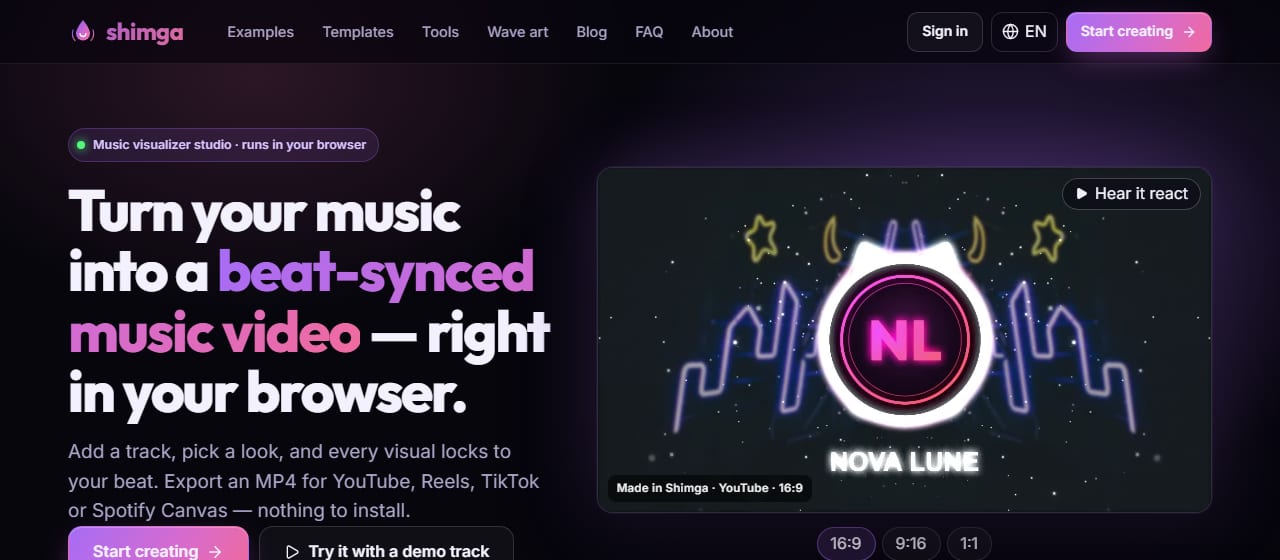
Screenshot: shimga.app
What does Shimga cost?
Building and previewing in Shimga Studio needs no payment and no sign-in. Exports up to 5 minutes are currently free up to 720p at 30 fps with a small watermark (Pro elements included); Pro goes up to 4K at 60 fps with no watermark. Pro is paid and covers longer videos and the Pro layers and templates: $5 per month or $48 per year with a 7-day free trial (card required), $3 for 6 Pro exports (credits, valid for a year), or $131 + tax for Lifetime (one payment, no renewals). If a scene uses Pro items and you do not pay, you can remove the Pro elements and export.
Who benefits most from an online visualizer?
- Independent artists and producers who need a release video without hiring a motion designer.
- Podcasters turning clips into shareable videos (see how to create podcast videos).
- DJs and streamers who want looping visuals for streams and screens.
- Lo-fi and study-music channels that publish many tracks and need a consistent look.
- Social media managers who work from any machine without managing software licences.
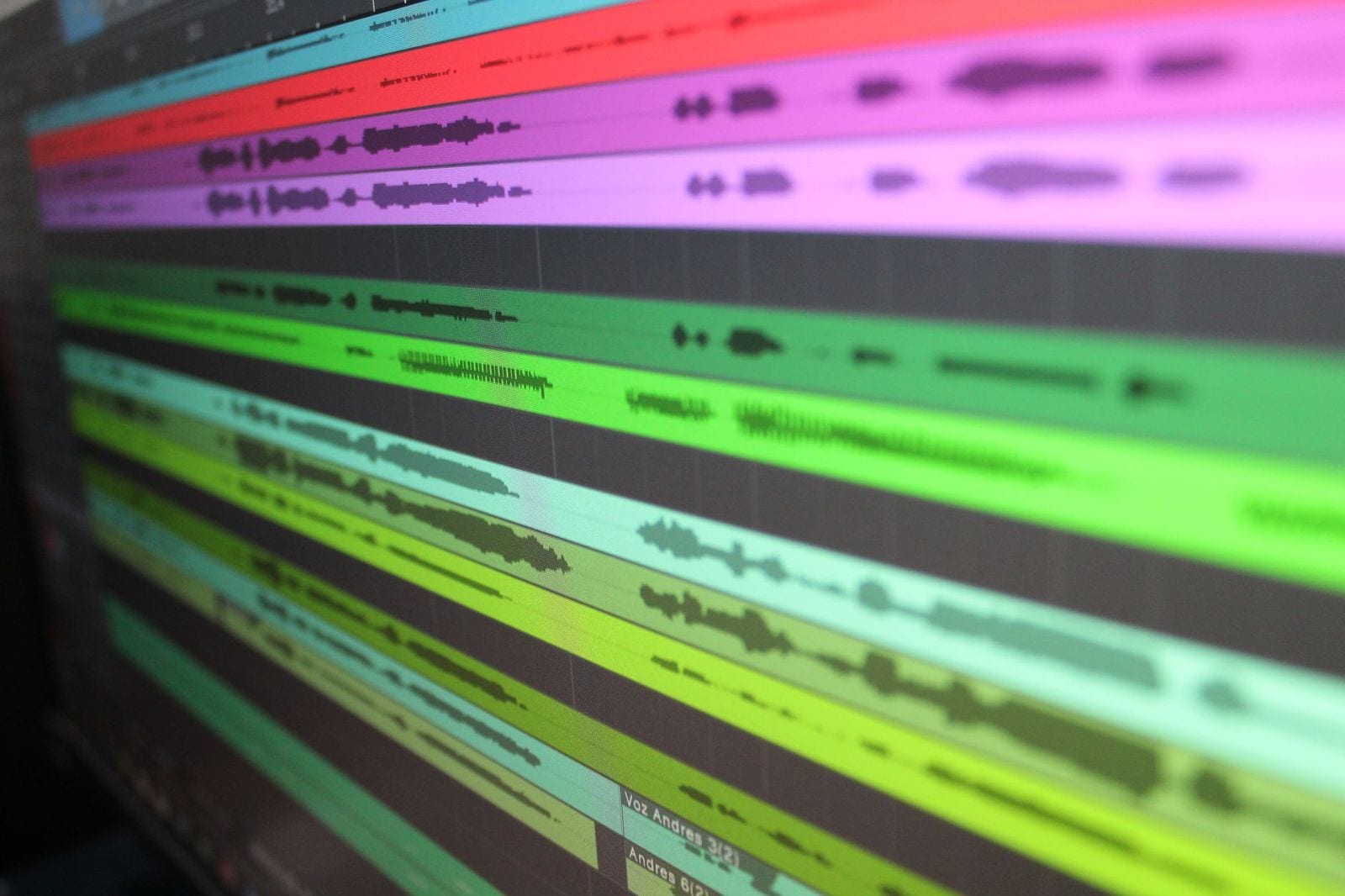
Photo: Jerson Vargas on Pexels
How do you make a music visualizer video online in about three minutes?
- Open Shimga Studio in Chrome or Edge.
- Add your MP3, WAV, OGG, FLAC or M4A file. It is analysed in your browser.
- Pick a preset or a community template and preview it against your track.
- Customise colours, background image or video, and add your logo or text.
- Choose 16:9, 9:16, 1:1 or another canvas shape and a resolution, then press Export.
The finished MP4 downloads straight to your device.
What are the limitations?
Browser visualizers need a modern browser and decent graphics hardware; older integrated graphics can render slowly. Very long audio (an hour or more) can strain a single tab on machines with limited memory. Chroma keying, multi-clip editing and motion tracking still belong in a dedicated editor. Online visualizers are best at audio-reactive animated visuals.
Frequently asked questions
Do online music visualizers upload my audio?
In Shimga, no. Audio is decoded and analysed in your browser and stays on your device unless you choose to save a public template that includes the audio file.
Is there a watermark on Shimga exports?
No. Shimga does not add a watermark. Exports up to 5 minutes are currently free up to 720p at 30 fps with a small watermark (Pro elements included); Pro goes up to 4K at 60 fps with no watermark.
Do I need to sign in to use an online visualizer?
In Shimga you can build, preview and export a standard video without signing in. You only sign in to buy or use Pro.
What audio formats does Shimga accept?
MP3, WAV, OGG, FLAC and M4A. The browser's built-in decoder handles them, so no extra codecs are needed.
Which browser is best?
Chrome and Edge give the smoothest export experience, especially for long videos. Other modern browsers work for building and previewing.
Related reading: best music visualizers compared, aspect ratios for music videos, and the music visualizer page.
Make your first visualizer video
Add a track, pick a preset and export an MP4 from your browser.
Open Shimga Studio →