Podcast Audiogram Maker: How to Make Podcast Videos
Update, 20 November 2026: Shimga's free exports now go up to 720p at 30 fps with a small "Made with shimga.app" watermark, and Pro elements and templates are included. 1080p to 4K, 60 fps, exports without the watermark and videos over 5 minutes need Shimga Pro or credits. Where this article mentions free 4K or no watermark, it describes the earlier free tier.
Short answer: A podcast audiogram is a short video that pairs a clip of your episode with an animated waveform, your logo and a title. In Shimga Studio you drop in the audio, pick a waveform or spectrum style, choose 9:16, 1:1 or 16:9, and export an MP4 in a few minutes; you can build and export it without signing in or paying, and a standard export of up to five minutes does not need Pro.
Last updated 21 October 2026.
What is a podcast audiogram?
A podcast audiogram is a 30 to 90 second video clip that shows a moment from an episode as moving visuals: an animated waveform or frequency spectrum over a branded background, usually with the show name, episode title and a logo. It exists because most social platforms are built around video, and a plain audio file or a link does not get shown the same way.
An audiogram works as a trailer for the episode. A viewer scrolling Reels, Shorts or LinkedIn hears a few seconds of your voice before they ever open your podcast app, and the motion on screen signals that something is playing. For a podcaster, it is one of the cheapest ways to turn one recording into several pieces of social content.
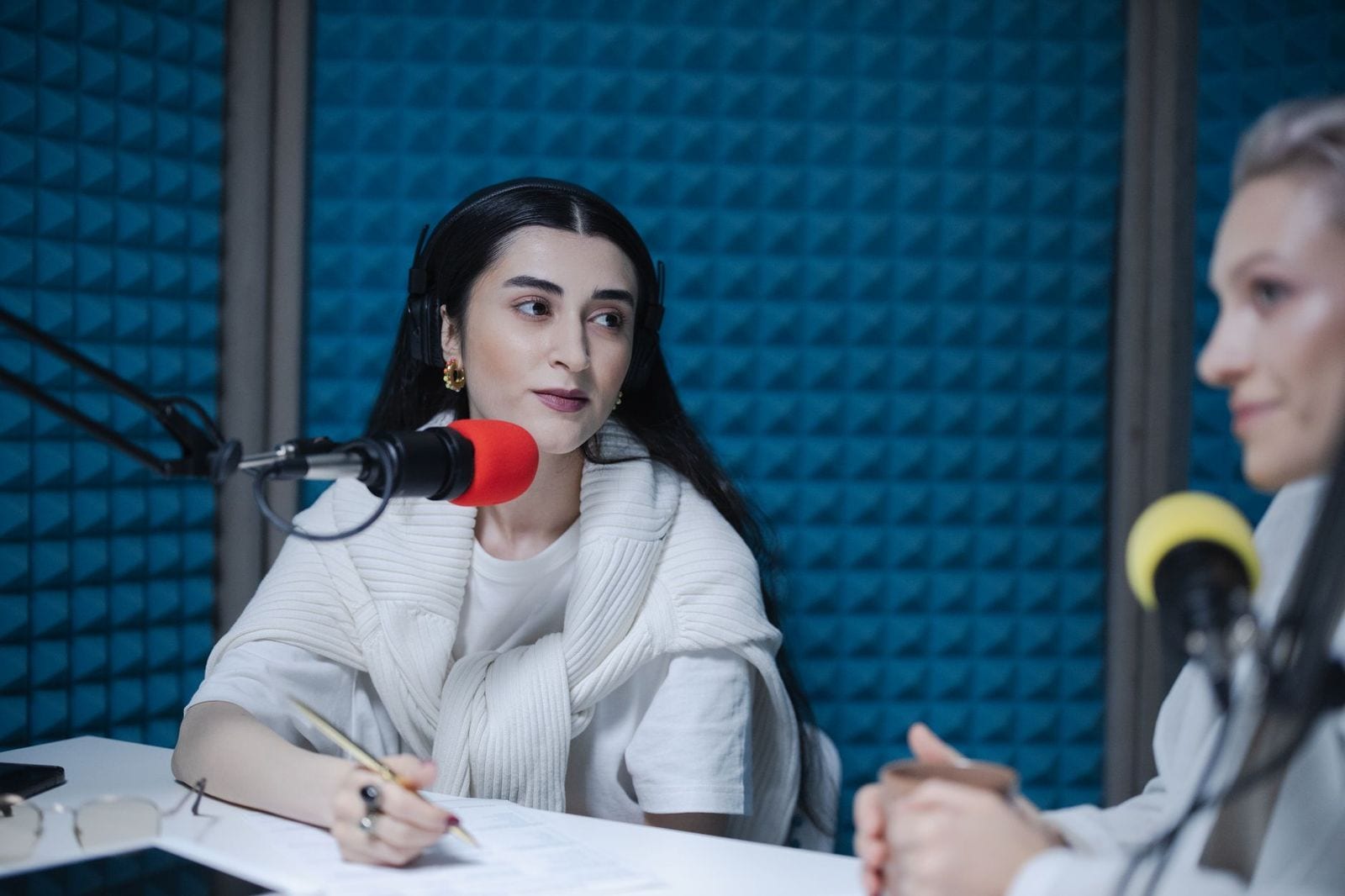
Photo: cottonbro studio on Pexels
Audiogram or full podcast video: which one should you make?
Make both when you can, because they do different jobs. A full video episode suits YouTube, where people search and watch long-form. A short audiogram suits feeds, where you have a few seconds to earn attention.
| Format | Length | Best for | Typical ratio |
|---|---|---|---|
| Audiogram clip | 30 to 90 seconds | Instagram Reels, YouTube Shorts, TikTok, LinkedIn, X | 9:16 or 1:1 |
| Full episode with visualizer | Whole episode | YouTube, embedding on a website | 16:9 |
For full episodes, Shimga's podcast visualizer page explains the long-form workflow. Note that videos longer than 5 minutes need Pro to export, so audiograms are the natural fit if you do not want to pay.
What makes a good audiogram?
- An animated waveform or spectrum. It proves to the viewer that audio is playing. Pick one that reacts to the actual frequencies, not only the overall volume.
- Episode title and show name. Keep it to one short line, large enough to read on a phone, away from the animation.
- A logo or speaker photo. Repetition builds recognition across episodes.
- A clean background. A solid dark colour, a gradient or blurred cover art works. Busy images compete with the waveform.
- The right aspect ratio. See the table below.
- A strong clip. Choose a self-contained moment, such as a surprising fact, a strong opinion or a short piece of advice, and start on the hook rather than a pause.
Screenshot: shimga.app
How do you make a podcast audiogram in Shimga?
The whole process takes a few minutes. You can build and preview in Shimga Studio without an account, and export it without one too.
- Open shimga.app/studio in Chrome or Edge (other modern browsers also work).
- Drop in your podcast audio (MP3, WAV, OGG, FLAC or M4A). If the file is a full episode, trim it to the 60 to 90 seconds you want. The Audio Trimmer and Audio Cutter do this in the browser if you prefer to cut first.
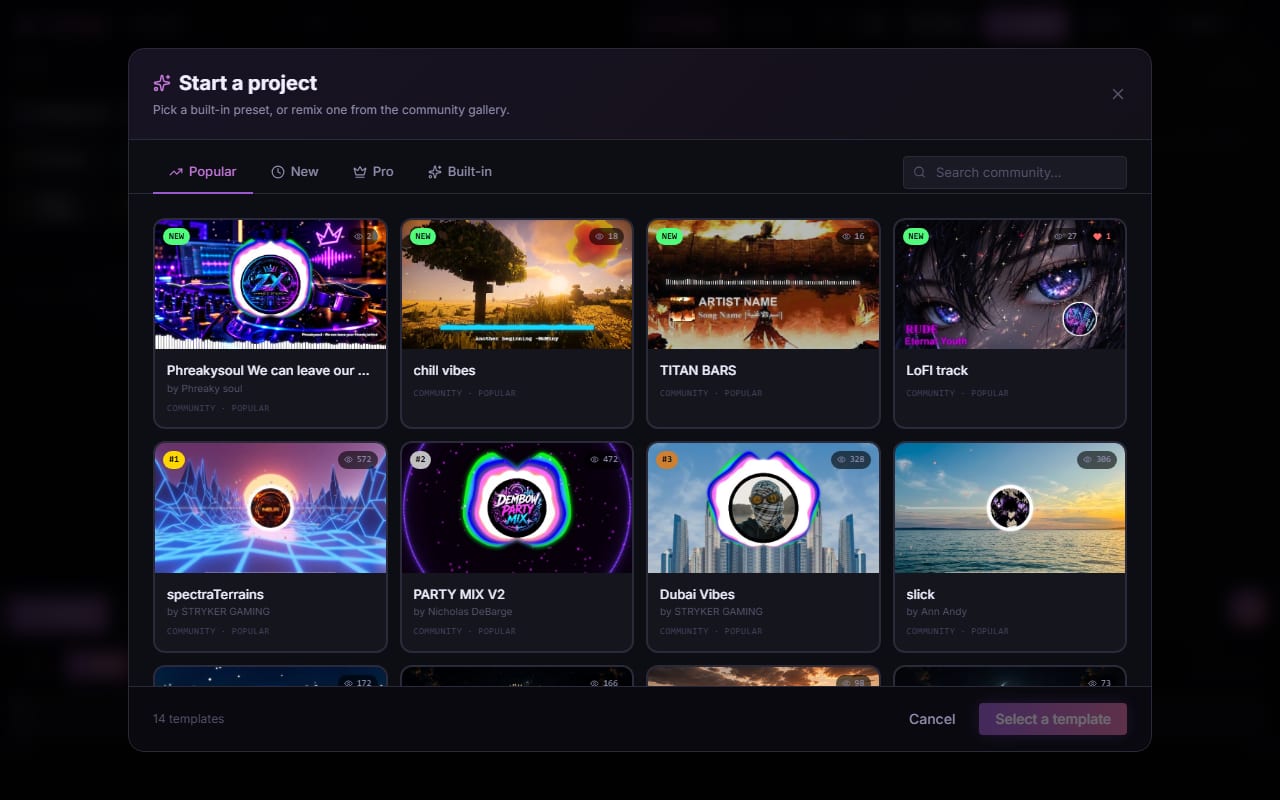
- Choose a waveform, bar or circular spectrum preset from the preset list or the templates gallery.
- Add your logo as an image layer, and a text layer for the episode title.
- Set the background colour or image to match your show's branding.
- Switch the canvas to 9:16, 1:1 or 16:9 for the platform you are posting to.
- Export an MP4 at 1080p and 30 fps, then upload it directly.
Rendering happens on your own computer, so your audio is not uploaded. If your scene uses Pro elements or runs over 5 minutes, exporting needs Pro; otherwise a standard export is free, and Shimga adds no watermark.
Which aspect ratio should a podcast audiogram use?
| Platform | Ratio | Size |
|---|---|---|
| Instagram Reels, YouTube Shorts, TikTok | 9:16 | 1080 x 1920 |
| Instagram and LinkedIn feed, X | 1:1 | 1080 x 1080 |
| YouTube, website embeds | 16:9 | 1920 x 1080 |
See music video aspect ratios for more detail on each platform. Export one ratio at a time: switch the canvas shape and export again.
How do you turn one episode into a week of content?
Treat the episode as source material. From a 40-minute recording, pick three or four clips: a teaser, a key insight, a funny moment and a listener question. Export each in the ratios you need, schedule them across the week, and point every post back to the full episode.
- Batch the work right after recording while the best moments are fresh.
- Save a project with your branding once, then swap the audio and title for each clip.
- If you have a guest, show their photo or name and tag them when you post.
- Add captions as a text layer so the clip works for people watching without sound.
The Silence Remover and Loudness Normalizer are useful before you export if the clip has long pauses or uneven levels.
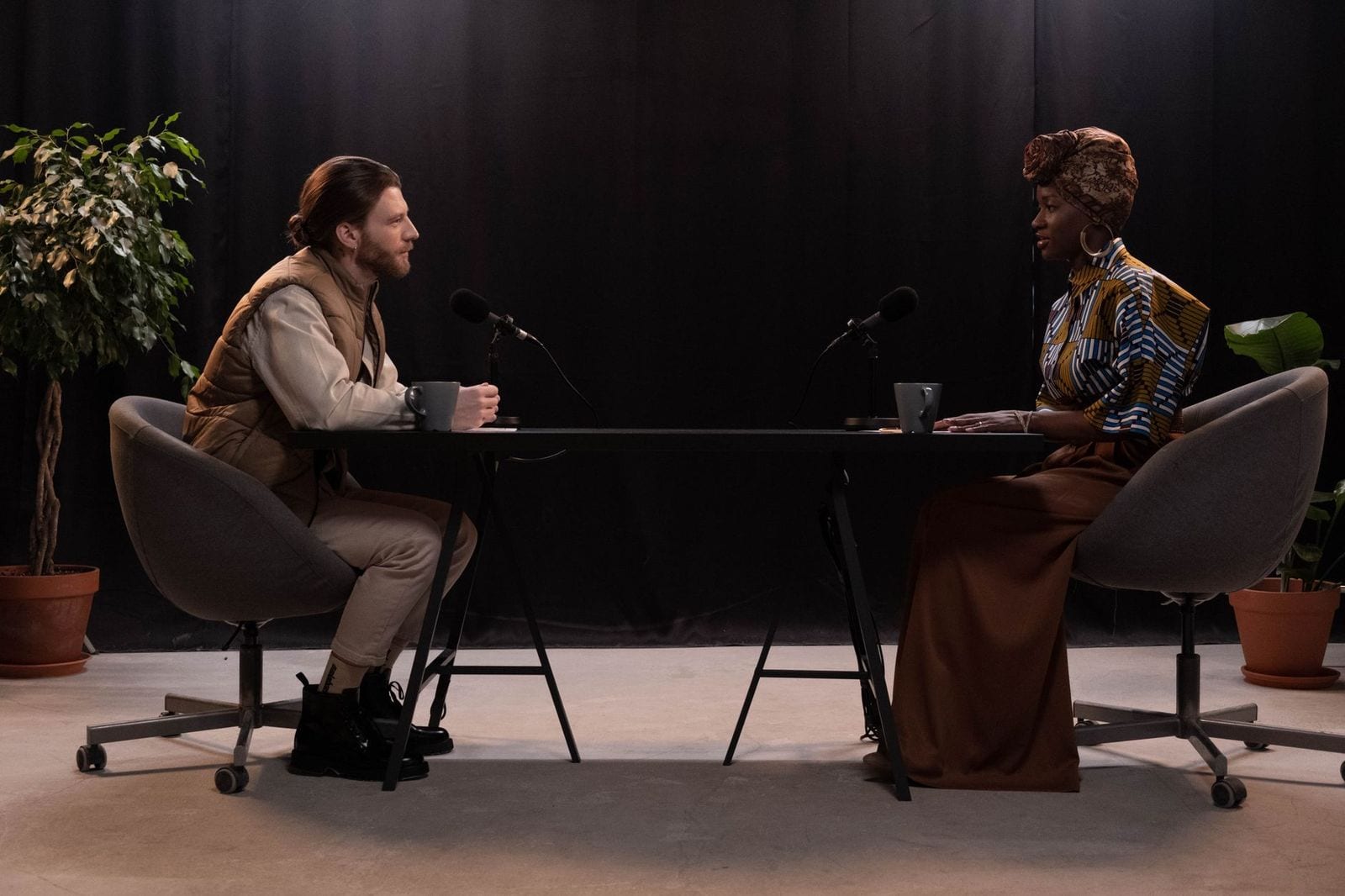
Photo: cottonbro studio on Pexels
How does Shimga compare with other audiogram tools?
Dedicated audiogram tools such as Headliner or Descript focus on transcription, captions and editing. Shimga focuses on the visual side: audio-reactive spectrum and waveform styles, logo and text layers, and local rendering. Plans, limits and prices for other tools change, so check their current pricing before you choose. If you want automatic transcription, use a tool that offers it; if you want more control over how the waveform looks and reacts, Shimga is built for that. See also the waveform generator guide and audio visualizers for YouTubers.
Frequently asked questions
What is the best length for a podcast audiogram?
Most audiograms work best at 60 to 90 seconds. That is long enough to deliver a complete thought and short enough to fit Reels, Shorts and native video on X and LinkedIn. Shorter clips tend to be shared more, so test 30 to 45 seconds as well.
Do I need an account to make a podcast audiogram in Shimga?
No. You can open the studio, add audio, design the visualizer, preview and export the MP4 without an account.
Will my audiogram have a watermark?
No. Shimga does not add a watermark. A standard export (currently up to 4K, up to five minutes, without Pro elements) is free.
Which aspect ratio should I use?
Use 9:16 for Reels, Shorts and TikTok, 1:1 for feed posts on LinkedIn, Instagram and X, and 16:9 for YouTube and website embeds.
Is my podcast audio uploaded anywhere?
No. Shimga analyses and renders audio in your browser, so the file stays on your device unless you choose to save a public template that includes it.
Make your first audiogram
Drop in a clip, pick a waveform style, add your logo and export an MP4.
Open Shimga Studio →