Audio Visualizer for YouTubers: Complete 2026 Guide
Update, 20 November 2026: Shimga's free exports now go up to 720p at 30 fps with a small "Made with shimga.app" watermark, and Pro elements and templates are included. 1080p to 4K, 60 fps, exports without the watermark and videos over 5 minutes need Shimga Pro or credits. Where this article mentions free 4K or no watermark, it describes the earlier free tier.
Short answer: YouTubers can use an audio visualizer to turn a track into a moving, beat-reactive video that holds attention better than a static image. Export 16:9 for the main upload and 9:16 for Shorts; in Shimga Studio, 1080p, 2K and 4K at 24, 30 or 60 fps are currently free for scenes without Pro features.
Last updated 21 October 2026.
For independent musicians and music channels, the YouTube algorithm leans on viewer behaviour such as watch time and retention. A well-matched audio visualizer is one of the cheapest ways to give viewers a reason to keep watching. This guide covers aspect ratios, genre styling, beat-sync, branding, thumbnails and export settings.
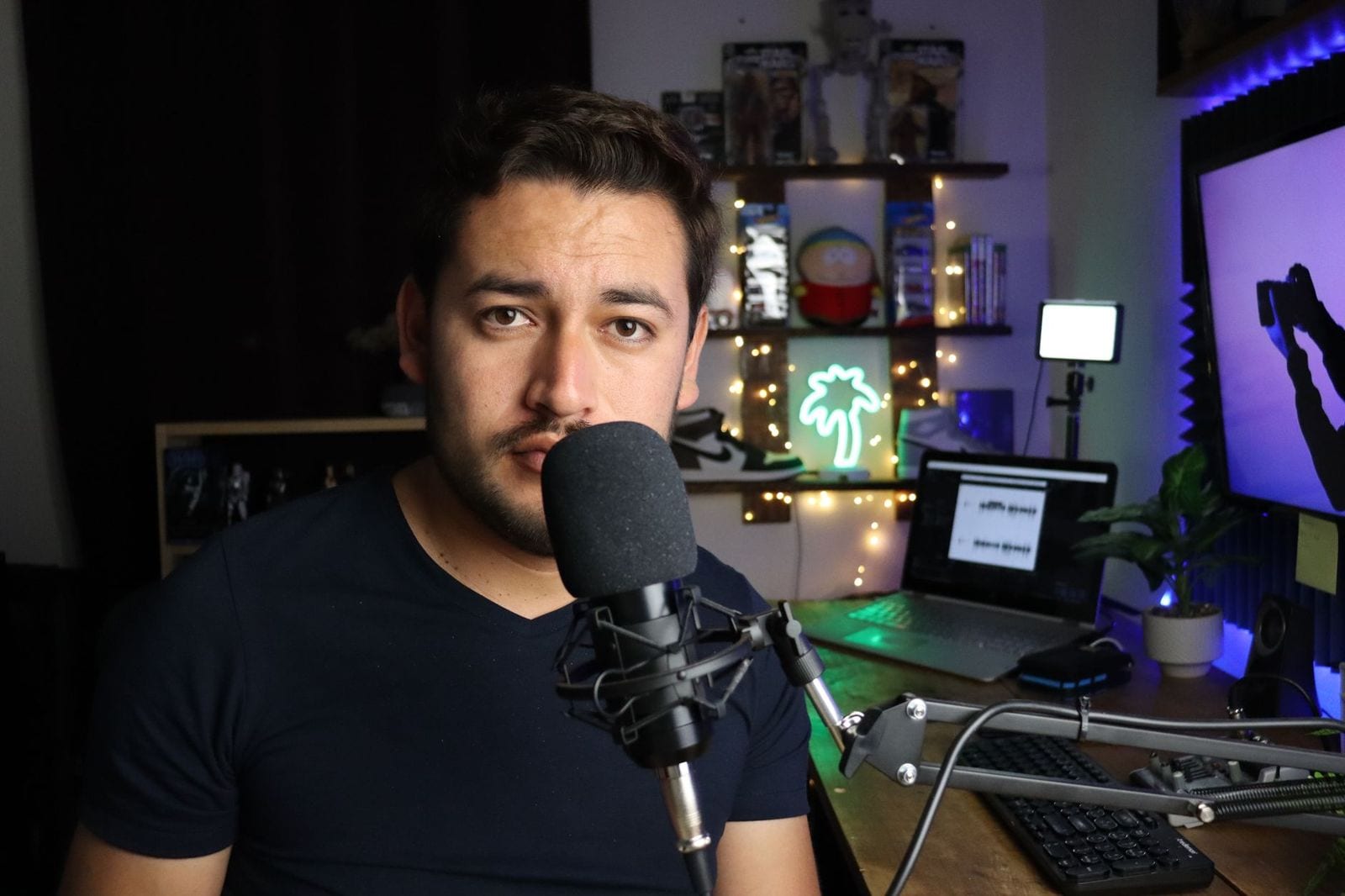
Photo: Benjamin Dominguez on Pexels
Why do audio visualizers help retention?
- Motion draws attention. A still image is easy to ignore; movement keeps the eye on the screen.
- Beat-synced motion builds anticipation. Viewers stay for the next drop to hit visually.
- Visual polish signals effort. Colour shifts and reactive elements feel closer to a music video than a slideshow.
We do not publish retention percentages because they vary by channel and audience. Check your own YouTube Studio analytics before and after changing your visuals.
Step 1: Which aspect ratio should you export?
YouTube serves several formats, so one ratio leaves reach on the table.
| Ratio | Size | Use |
|---|---|---|
| 16:9 | 1920x1080 | Main YouTube videos |
| 9:16 | 1080x1920 | Shorts |
| 1:1 | 1080x1080 | Community posts and cross-posting |
Shimga lets you switch the canvas between all three, plus 4:5, 21:9 and custom sizes. Export the main version first, then switch to 9:16 for Shorts. See aspect ratios for music videos.
Step 2: Which visualizer style fits your genre?
Visuals should reinforce the sound. A metal track over a pastel sunrise feels off.
| Genre | Style that tends to work |
|---|---|
| Electronic and EDM | Neon colours, circular spectrums, particle bursts on drops |
| Hip-hop and trap | Bar spectrums with strong bass reactivity, dark backgrounds, glitch effects. See Trap Nation style visualizers |
| Lo-fi and ambient | Subtle waveforms over a photo, slow particle drift, gentle motion. See lo-fi animation |
| Rock and metal | Aggressive bars, strong beat response, monochrome with one accent colour |
| Pop and indie | Cinematic backgrounds, soft glow, light bloom, a transparent waveform over a photo |
Start from a community template or a built-in preset and adjust colours. Colour guidance is in music visualizer colour theory.
Step 3: How do you sync the visual to the beat?
The most common mistake is letting the visualizer move on its own against the track. In Shimga, numeric settings can be linked to the bass, mids, highs or overall level, so background pulses, particle bursts and bar spikes all follow the audio. Find your song's tempo with the BPM Finder if you want keyframes or cuts to land on the beat. More in the beat-sync guide and keyframe animation.
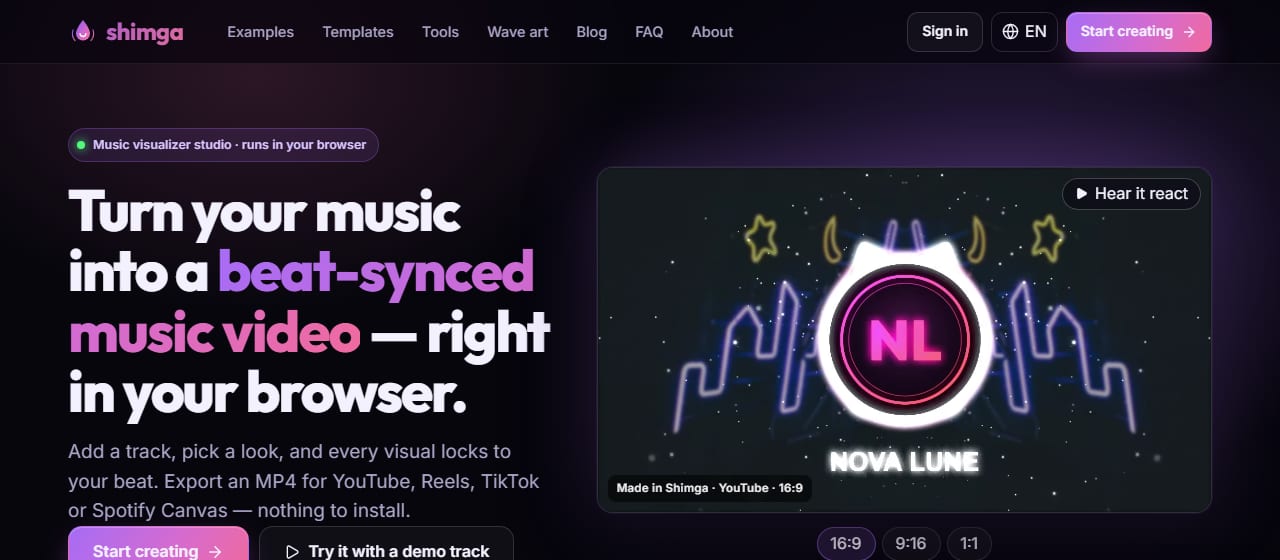
Screenshot: shimga.app
Step 4: How do you brand your videos?
Add your logo to every video, in a corner or in the centre of a circular spectrum, so your channel looks consistent. Pick two or three brand colours and reuse them. See adding a logo to a music visualizer.
Step 5: How do you match the thumbnail?
Capture a strong frame, such as a chorus or drop, and use it as the thumbnail with the track title in bold, readable type. Reusing the visualizer's look keeps the video page cohesive when viewers click through.
Step 6: Which export settings work for YouTube?
| Setting | Recommendation | Pro needed in Shimga? |
|---|---|---|
| Resolution | 1080p; 2K or 4K for viewers on large screens | Yes (Pro or credits; free is up to 720p) |
| Frame rate | 30 fps for most tracks; 60 fps for very fast visual changes | Yes (Pro or credits; free is up to 720p) |
| Bitrate | About 12 to 20 Mbps for 1080p; 35 Mbps or more for 4K | No |
| Format | MP4, H.264 with AAC audio | No |
| Length | Up to 5 minutes without Pro | Longer needs Pro |
Pro is $5 per month or $48 per year with a 7-day free trial, $3 for 6 Pro exports, or $131 + tax for Lifetime. Details: exporting in 1080p and 4K.
Which tools do YouTubers use?
- Shimga Studio: browser-based, local rendering, MP4 export, community templates.
- Specterr and Vizzy: other browser visualizers with their own plans and limits; check their current pricing and watermark terms.
- After Effects with plugins: maximum control for professionals, with a steep learning curve and subscription cost.
For a wider comparison, see best music visualizers of 2026.
Photo: ahmed akeri on Pexels
What mistakes should beginners avoid?
- Ignoring watermark rules. Many tools stamp a logo on some exports; check any tool's current plan before you render. Shimga does not add a watermark.
- Mismatched colours. Stick to two or three brand colours.
- Over-busy visuals. One reactive layer plus one static layer is usually enough.
- Wrong aspect ratio. Export 9:16 for Shorts instead of uploading 16:9 with bars.
How do you make several music videos quickly?
- Build three to five brand templates in Shimga, one per genre you release.
- Open the matching template for each new track and replace the audio.
- Swap the background photo or colours if needed.
- Export the MP4; it is already YouTube-ready H.264.
Render time depends on your computer and the resolution you pick, but the active work per track is small once templates exist.
Frequently asked questions
What is the best audio visualizer for YouTube?
The best one is whichever exports clean MP4 in the right aspect ratio and lets you match the style to your genre. Shimga Studio is built for this and works in the browser with no install.
What resolution should I export for YouTube?
1080p at 30 fps is a solid default. 2K and 4K need Pro or credits in Shimga and are worth it mainly for viewers on large screens.
Do I need a separate video for Shorts?
Yes, export a 9:16 version rather than uploading a 16:9 video with black bars. Shimga can switch the canvas to 9:16 in the same project.
Will my exports have a watermark?
No. Shimga does not add a watermark. Exports up to 5 minutes are currently free up to 720p at 30 fps with a small watermark (Pro elements included); Pro goes up to 4K at 60 fps with no watermark.
One audio file, three formats
Build once in the studio and export 16:9, 9:16 and 1:1 versions.
Open Shimga Studio →Related reads: YouTube music video maker, free vs paid visualizers.