Faster Visualizer Previews and MP4 Exports in Your Browser
Short answer: Shimga renders in your browser, so speed depends on your device. To get smoother previews and faster MP4 exports, use up-to-date Chrome or Edge, close other tabs, make sure the browser is using your dedicated GPU, reduce the number of heavy layers and effects, and test a short lower-resolution export before committing to a long render. Export timing is not tied to real time, so a slow render still produces a correct, in-sync file.
Last updated 21 October 2026.
How does browser-based visualizer rendering work?
When you press play in Shimga Studio, each animation frame reads audio analysis data, updates the scene and draws every layer. Layers are a mix of 2D canvas drawing and GPU work such as shader backgrounds and 3D elements. Any heavy JavaScript on the main thread (physics, sorting, many layers) must finish within the frame budget, about 16 ms for 60 fps, or the preview stutters.

Photo: Nothing Ahead on Pexels
Export works differently from preview. Instead of recording the live screen, Shimga renders each frame offline at exactly the target frame rate. The audio is analysed in advance, so frame i always uses the audio data for its own moment. The frame is passed to the browser's WebCodecs VideoEncoder for H.264 encoding and written into an MP4 together with the audio. Because the process is not real-time, it does not drop frames if the computer is busy; it simply takes longer.
What causes slow previews and exports?
| Bottleneck | What it means | What helps |
|---|---|---|
| Layer and effect count | Every visible layer is drawn every frame; glows, blurs and full-screen effects are the costliest | Hide or remove layers you do not need; reduce glow and effect strength |
| Particle counts | More particles mean more per-frame work | Lower the particle count, or use a spectrum or waveform scene |
| Resolution and frame rate | Pixels per frame and frames per second multiply the work | Test at 720p, then export at the final resolution |
| Encoder queue | During export the encoder can lag behind the renderer; Shimga waits on the encoder queue so memory does not balloon | Close other video apps and tabs |
| Integrated vs dedicated GPU | Browsers on laptops may default to the weaker GPU | Assign the browser to the high-performance GPU |
| Memory pressure | Long, high-resolution renders use more memory | Close other tabs and apps; keep 16 GB RAM in mind for 2K or 4K work |
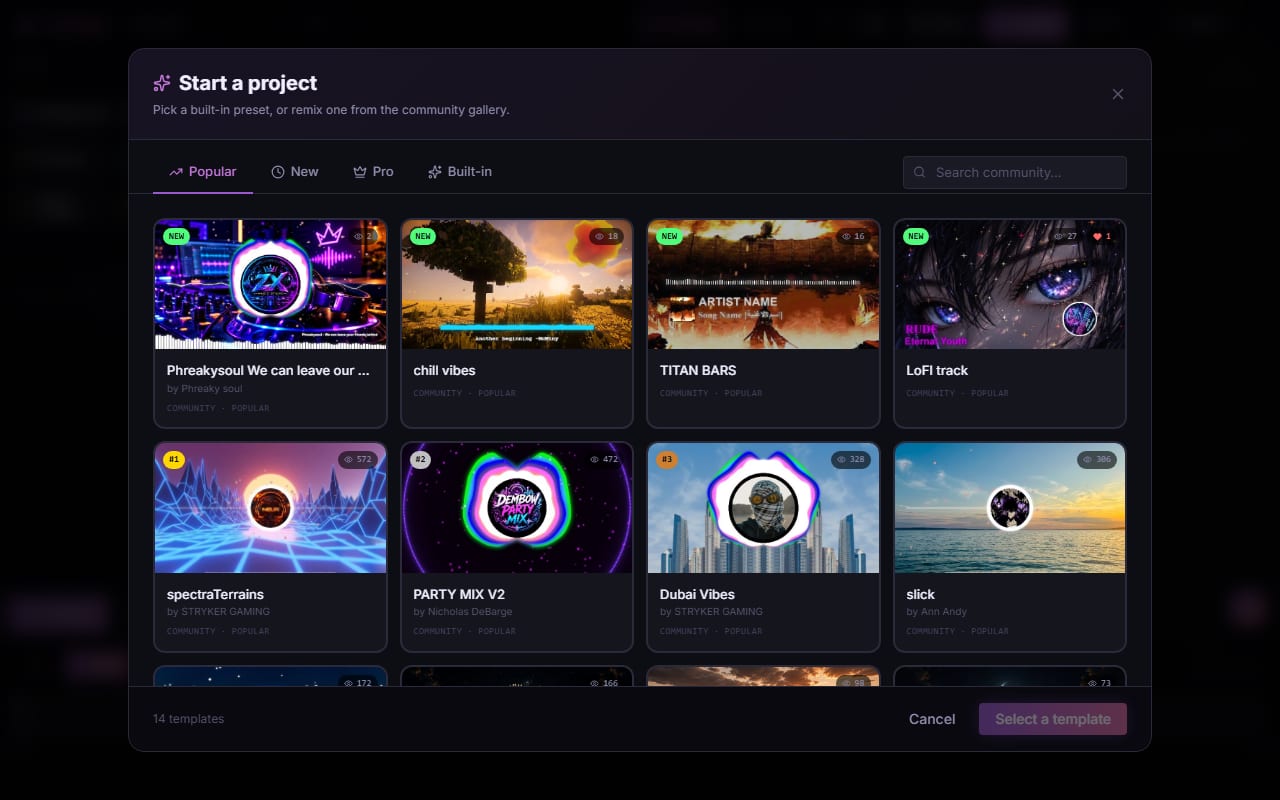
Screenshot: shimga.app
How to speed things up: step by step
- Use Chrome or Edge on the latest stable release. They have the most complete WebCodecs and WebGL support, and hardware H.264 encoding is generally best there.
- Close other tabs and apps before exporting, especially video, games and screen recorders that compete for the GPU and encoder.
- Select the high-performance GPU. On Windows, open Settings, System, Display, Graphics, add your browser and set it to High performance. macOS manages GPU choice automatically.
- Pause extensions that touch pages or canvases, or export from a clean browser profile.
- Simplify the scene. Remove or hide the heaviest layers, lower particle counts and tone down glow.
- Test small. Export a short clip at 720p or 1080p to confirm look and sync, then export the full track.
- Plug in your laptop so the system does not throttle the CPU and GPU to save battery.
Why does export use WebCodecs instead of recording the screen?
Older browser tools captured a canvas stream with MediaRecorder. That samples the screen in real time, so if the machine falls behind, frames are dropped while the audio keeps running, and the result drifts out of sync. WebCodecs gives code direct access to the browser's encoder: each frame is submitted with an exact timestamp, so output timing is fixed by the frame number rather than the clock. The cost is that render time depends on hardware, resolution and scene complexity, not on the song length alone. See export settings for 1080p and 4K for bitrate guidance.
What are the limits on exports?
Standard exports (currently up to 4K, 24, 30 or 60 fps, up to 5 minutes, no Pro elements) can be made without paying or signing in. Videos over 5 minutes, Pro elements and Pro templates need Pro, which is paid: $5 per month or $48 per year with a 7-day free trial, $3 for 6 Pro exports, or $131 + tax for Lifetime. Higher resolutions and frame rates also take proportionally more time and memory, which is a good reason to test at a lower setting first. Details in the 4K export guide.
Photo: Jakub Pabis on Pexels
Does Shimga work offline?
Audio analysis and rendering happen on your device, so your audio is not uploaded for processing. The studio itself still needs a network connection to load, and sign-in, saving templates and checks for Pro exports contact our servers. If you are tuning a render, the practical advice is to avoid other heavy network or video activity on the machine. For privacy details see privacy and local processing.
Frequently asked questions
Why is my preview smooth but my export slow?
Export renders every frame at full target resolution and encodes it, which is more work than a live preview. It also runs offline rather than in real time, so a slower computer produces the same correct video, just later.
Which browser is best for exporting?
Chrome or Edge on the latest stable version generally give the best WebCodecs and hardware encoding support. Other modern browsers may work but can be slower or lack features.
My laptop has a dedicated GPU but Shimga feels slow. What should I check?
Check that your browser is actually using the dedicated GPU. On Windows, set the browser to High performance under Settings, System, Display, Graphics, and confirm GPU activity in Task Manager while Shimga runs.
How can I make exports faster?
Close other apps and tabs, reduce heavy layers and effects, lower the particle count and test at a lower resolution first. Exports at 1080p take less time and memory than 2K or 4K.
Test a short export first
Open the studio, load a track and run a quick 720p export to check the look before the full render.
Open Shimga Studio →Related: GLSL shader performance tips, audio tools for trimming a track first, and how to make a music video.