Free Online Voice Recorder: Record Audio in Your Browser
Free Online Voice Recorder: Record Audio in Your Browser
Last updated: November 2026
The quickest way to record your voice online for free is to open the Shimga Voice Recorder, allow microphone access, press Start recording, and download the take when you stop. There is nothing to install and no account to create, and the recording is made and kept in your browser on your own device, so it is not uploaded anywhere. It works with a laptop's built-in microphone, a USB microphone or a headset, on desktop and on most phones.
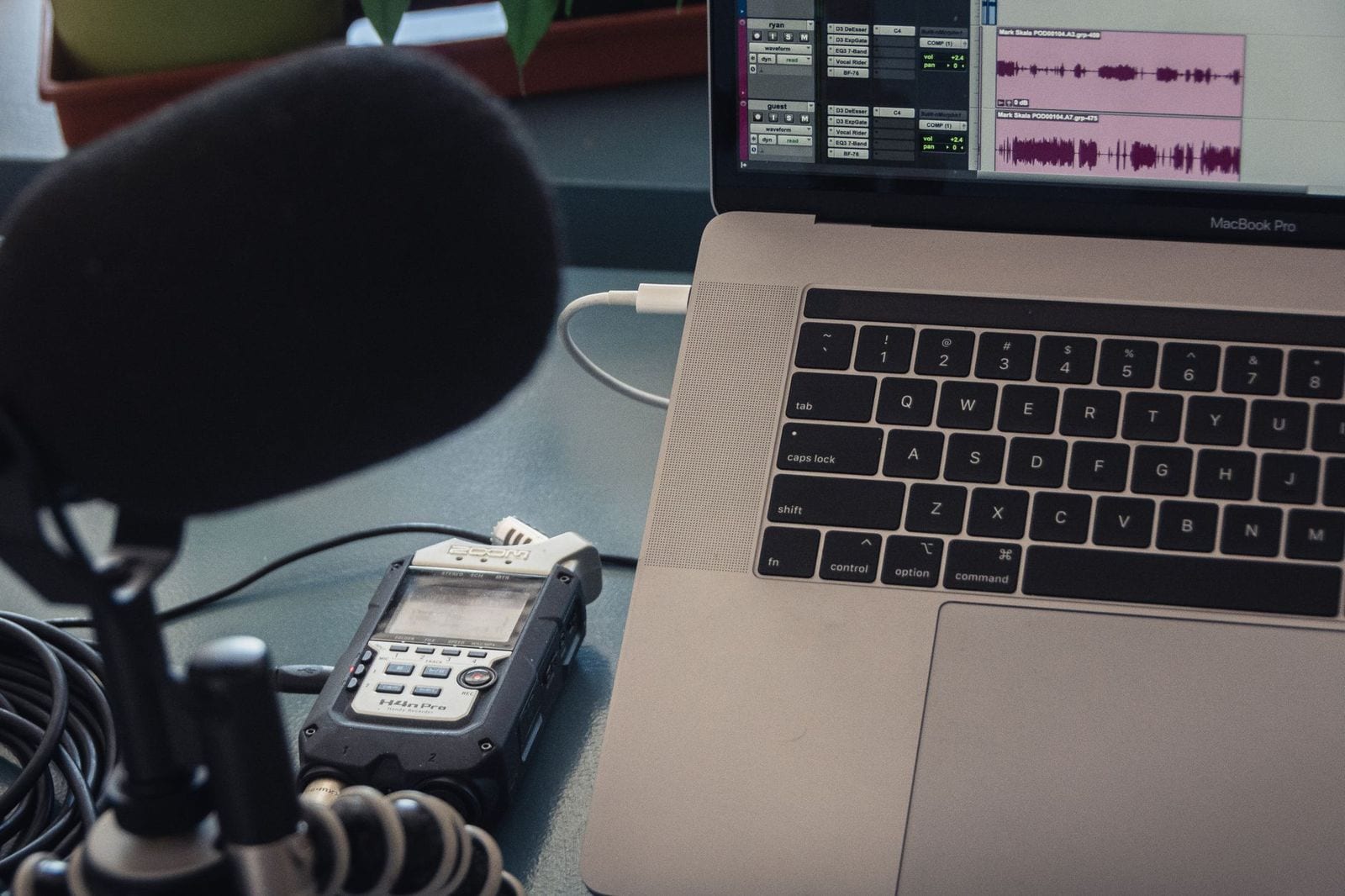 Photo: Jeremy Enns on Pexels
Key facts
- What you need: a modern browser (Chrome, Edge, Firefox or Safari) and any microphone.
- Install: none. The recorder uses the browser's built-in audio capture.
- Privacy: the recording stays on your device until you download it. Nothing is sent to a server.
- Cost: free to use.
- Length: limited mainly by your device's memory. For recordings longer than an hour, a desktop app is safer (see below).
- Downloads: MP3 (64 to 320 kbps), WAV, or the original file your browser recorded (usually WebM, or M4A in Safari).
- Spanish and Portuguese versions: grabador de voz online and gravador de voz online.
How to record your voice online in 7 steps
- Open the recorder at shimga.app/voice-recorder.
- Plug in your microphone first, then reload the page if you plugged it in after opening it. Browsers list devices when the page asks for permission.
- Allow microphone access when the browser asks. If you blocked it by accident, click the lock or settings icon next to the address bar and set Microphone to Allow.
- Check the microphone options. Pick the microphone you want if you have more than one (for example a webcam mic and a USB mic), and choose whether to keep noise suppression, echo cancellation and auto gain control on. For singing or instruments, switch all three off.
- Do a 10-second test. Speak at your normal volume, stop, and play it back. Watch the level meter: it should sit mostly in the purple range, and orange or red means you are too loud.
- Record. Press Start recording, speak, and press Stop. Pause and Resume keep everything in one take, or you can record separate takes; each one appears in your takes list.
- Trim and download. Drag the Start and End sliders to cut the silence at each end, then download as MP3 (smallest, plays anywhere), WAV (best for editing) or the original browser file.
Getting a clean recording (no fancy gear required)
Most "bad audio" comes from the room and the distance to the microphone, not from the microphone itself. These fixes cost nothing:
- Get closer. About a hand's width (10 to 20 cm) from a headset or USB mic is a good starting point. Your voice gets louder compared with the room.
- Pick a soft room. Bedrooms and closets full of clothes sound better than kitchens and bathrooms. Hard, empty walls create echo that is very hard to remove later.
- Switch off fans and notifications. A laptop fan or air conditioner becomes a constant hiss in the file.
- Speak across the mic, not straight into it. Angling slightly to the side reduces popping "p" and "b" sounds.
- Leave headroom. If your loudest words hit the top of the level meter, move back a little. A slightly quiet file can be boosted cleanly; a distorted (clipped) one cannot be repaired.
- Record a few seconds of silence at the start. Profile-based noise reduction (such as Audacity's) uses it to learn what the background sounds like, and the gap is easy to trim afterwards.
If the recording still has hiss or room noise, run it through the noise remover, then the audio enhancer for a more even, clearer voice.
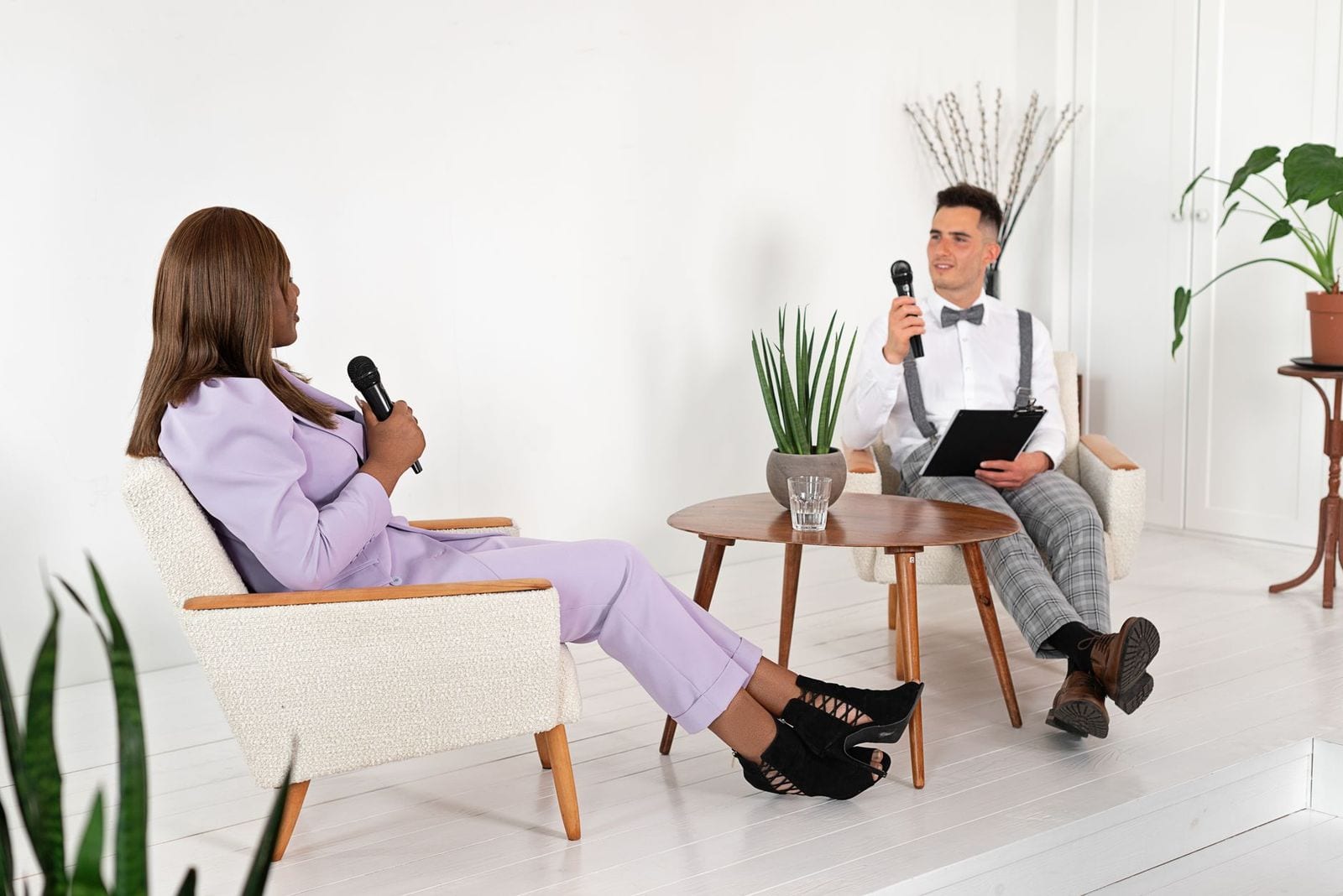 Photo: Mikhail Nilov on Pexels
What people use an online voice recorder for
| Use | What to watch for |
|---|---|
| Voice notes and reminders | Speed matters more than quality; the laptop mic is fine |
| Podcast intros or solo episodes | Use a headset or USB mic, quiet room, then enhance |
| Interviews in the same room | Put the mic between you; consider a desktop app for long sessions |
| Language practice and pronunciation | Record, listen back, compare with a native speaker clip |
| Voice-overs for videos and slides | Record line by line so mistakes are easy to cut |
| Singing demos and song ideas | Wear headphones if you play a backing track, so it doesn't bleed into the mic |
| Personalised gifts | A short voice message can become sound wave art |
How big will my recording be?
File size depends on the format. The original file from your browser is compressed (usually WebM/Opus, or M4A in Safari), and its exact bitrate depends on the browser. For MP3 you choose the bitrate. WAV is uncompressed and much larger.
| Format | Typical bitrate | Size per minute | Size per hour |
|---|---|---|---|
| Opus / WebM (speech) | 32 to 64 kbps | 0.24 to 0.48 MB | 14 to 29 MB |
| MP3 | 128 kbps | 0.96 MB | 58 MB |
| WAV, 16-bit, 48 kHz, mono | 768 kbps | 5.8 MB | 346 MB |
| WAV, 16-bit, 44.1 kHz, stereo | 1,411 kbps | 10.6 MB | 635 MB |
Formula: size in MB = bitrate (kbps) x seconds / 8 / 1000. If you need a smaller file to email or send, our audio compression guide explains which bitrate to choose for voice.
Online recorder vs desktop recorder
A browser recorder wins on speed and privacy for short and medium recordings. A desktop app wins on control and reliability for long or multi-track sessions.
| Browser recorder (Shimga) | Desktop app (Audacity, Windows Sound Recorder, Voice Memos) | |
|---|---|---|
| Setup | Open a page | Install, or use the one built into your OS |
| Privacy | Stays on your device | Stays on your device |
| Very long recordings | Memory limited; save often | Writes to disk as it records |
| Multi-track / overdubs | No | Yes (Audacity and DAWs) |
| Editing | Trim is built in; pair with Shimga's noise remover and enhancer | Built in |
| Works on a borrowed or locked-down computer | Usually yes | Often not (no install rights) |
If you are recording a two-hour meeting or a band rehearsal, use Audacity or your system's built-in recorder. For everything from a quick voice note to a polished 10-minute voice-over, a browser recorder is the faster path.
 Photo: Pavel Danilyuk on Pexels
Troubleshooting
- "No microphone found." Check the cable or Bluetooth connection, then reload. On Windows, open Settings, Privacy and security, Microphone, and make sure desktop apps and browsers are allowed.
- The recording is silent. The wrong input is selected, or the mic is muted with a hardware switch. Many headsets have one on the cable.
- It sounds robotic or cuts out. Bluetooth headsets switch to a low-quality "hands-free" mode when the microphone is active. A wired headset or USB mic sounds much better.
- It works on desktop but not on iPhone. Make sure Safari is allowed to use the microphone in Settings, and keep the screen on while you record.
FAQ
Is this online voice recorder really free? Yes, it is free to use and needs no account. There is no watermark, and Shimga sets no recording-length limit; your device's memory is the practical limit.
Are my recordings saved on your servers? No. The audio stays in your browser until you download it. If you close the tab before downloading, the recording is gone, so save it first.
Can I record on my phone? Yes, in Chrome on Android and Safari on iPhone. Keep the screen awake and the tab in front, because phones may pause background tabs.
What is the best free way to record a podcast? For a solo show, a USB or headset mic plus this recorder, followed by the noise remover and audio enhancer, is a solid free chain. For guests in different places, use a dedicated remote-recording service or have each person record locally. Then turn episodes into shareable clips with a podcast audiogram.
Can I record computer audio, not just my voice? Browsers only capture microphones by default. To record what your computer is playing, use a desktop tool such as OBS Studio or Audacity with a loopback input.
How do I make the recording louder? Use the volume booster. Read how to boost volume safely first, so you don't add distortion.
More free tools are on the Shimga tools page.