How to Cut WAV Files Online (Free WAV Cutter)
How to Cut WAV Files Online (Free WAV Cutter)
Last updated: November 2026
To cut a WAV file online, open the Shimga Audio Cutter, drop in the WAV, type the start and end time in seconds, and click Download. You get a new WAV containing only that section, made in your browser with no upload and no sign-up. It works just as well for MP3, M4A, OGG and FLAC; the output is always a 16-bit WAV. To shave silence or noise off the start and end, the audio trimmer does the same job with a trimming-focused layout.
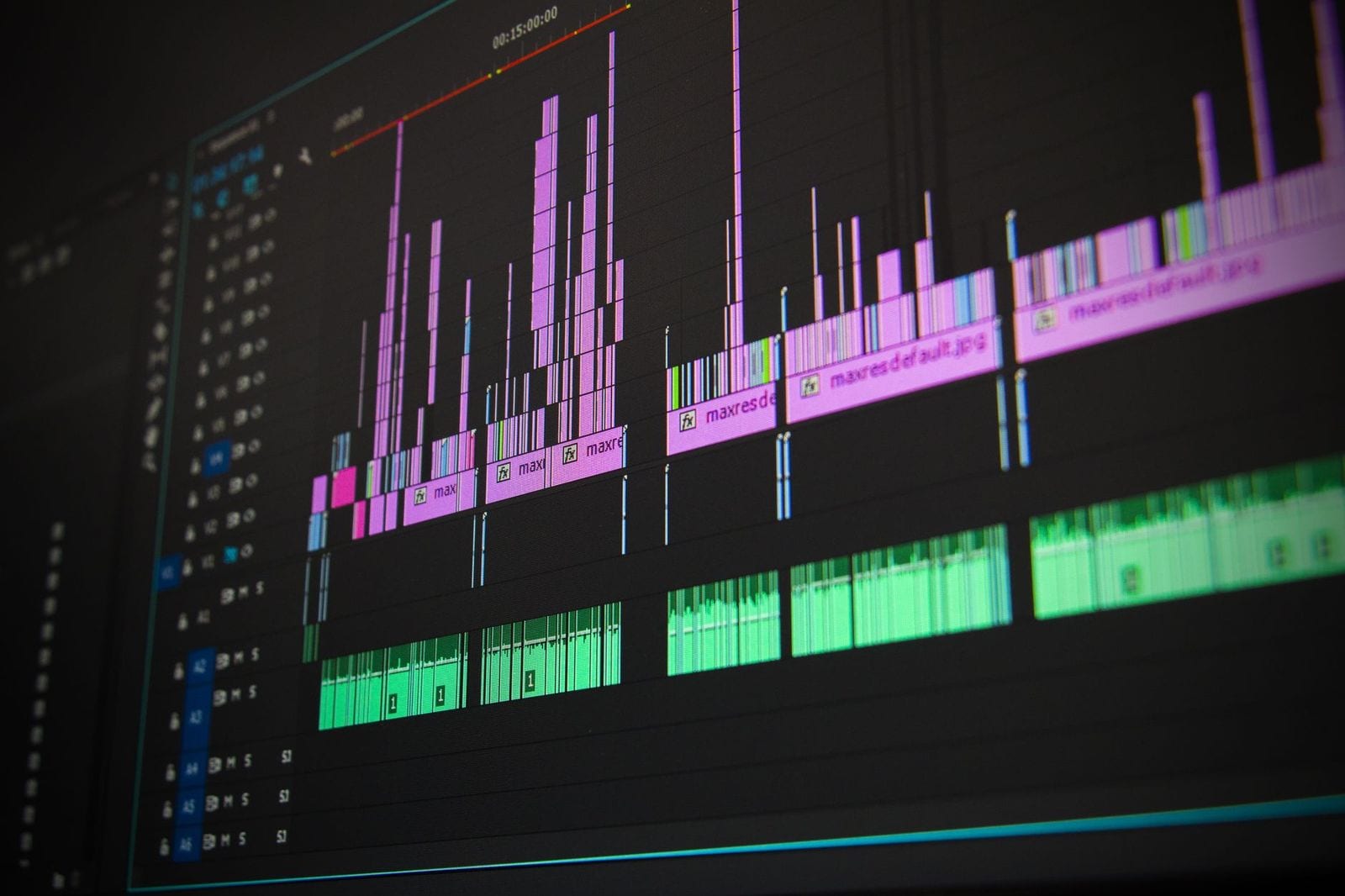 Photo: Pixabay on Pexels
Key facts
- Input: WAV, plus anything the browser can decode (MP3, M4A, OGG, FLAC, AAC).
- Output: 16-bit PCM WAV at the original sample rate and channel count.
- Precision: start and end are set in seconds, to a tenth of a second.
- File size: limited by your browser's memory. A file of around 30 minutes or 200 MB is fine on a modern laptop.
- Quality: the cut section is the same audio as the original. Only files above 16-bit (such as 24-bit masters) lose their extra bit depth.
- Privacy: the file never leaves your device.
Cut a WAV file in 6 steps
- Open shimga.app/audio-cutter.
- Drop in your WAV or click to choose it. The tool shows the total length.
- Find your times. Play the file in any player and note the second where your section starts and ends. For music, starting on a beat makes loops and edits sound natural; the BPM finder tells you the beat length (60 / BPM seconds).
- Type the start and end in seconds, for example 42.5 and 72.5 for a 30-second clip.
- Click Download to save the cut WAV (named after your file with "-cut").
- Listen to the edges. If there's a click at the start or end, nudge the time by 0.1 s so the cut lands in a quieter moment.
Need several pieces from one file? Repeat with different start and end times. Each download is a separate WAV.
Converting minutes to seconds
The cutter uses seconds, so convert timestamps like this:
| Timestamp | Seconds |
|---|---|
| 0:30 | 30 |
| 1:15 | 75 |
| 2:42.5 | 162.5 |
| 3:00 | 180 |
| 10:05 | 605 |
Formula: minutes x 60 + seconds.
 Photo: Egor Komarov on Pexels
Why WAV output, and what about 24-bit files?
WAV is uncompressed, so cutting and saving as WAV doesn't add any compression artifacts, unlike re-saving an MP3. Every DAW, sampler, video editor and media player reads it.
The cutter writes 16-bit WAV, which is CD quality and plenty for listening, sharing, samples and video. If your source is a 24-bit or 32-bit float studio file and you're still mixing or mastering, cut it in a DAW or Audacity instead, so you keep the extra headroom for processing.
How big is a WAV file?
Size depends on sample rate, bit depth and channels:
| Format | Per second | Per minute | 30-second clip |
|---|---|---|---|
| 16-bit, 44.1 kHz, stereo (CD) | 176 KB | 10.6 MB | 5.3 MB |
| 16-bit, 48 kHz, stereo | 192 KB | 11.5 MB | 5.8 MB |
| 16-bit, 44.1 kHz, mono | 88 KB | 5.3 MB | 2.6 MB |
| 24-bit, 48 kHz, stereo | 288 KB | 17.3 MB | 8.6 MB |
Cutting a section is the easiest way to make a WAV smaller. If it's still too big to send, compress it with the audio compressor; see how to compress audio files. Note the classic WAV format can't exceed 4 GB, which is roughly 6.7 hours of CD-quality stereo.
Avoiding clicks and pops at the cut
A cut in the middle of a loud sound can leave a tiny click, because the waveform jumps from a non-zero value to silence. To avoid it:
- Cut in a gap, between words or just before a drum hit.
- Nudge by 0.1 s and listen again.
- Add a short fade (5 to 20 milliseconds) in an editor such as Audacity if a click remains. This is standard practice for samples and loops.
- For loops, make the length an exact number of beats so the end flows back into the start. The loop and Spotify Canvas guide covers seamless loops.
What people cut WAV files for
| Task | Tip |
|---|---|
| Samples for a beat | Cut on the beat; fade the tail |
| Ringtone or alarm | 20 to 30 seconds; phones may need M4A (iPhone) or MP3 |
| Song preview or teaser | 15 to 30 seconds from the hook; turn it into a song teaser video |
| Podcast clip | Cut a strong 30 to 60 second moment for an audiogram |
| Removing silence from a recording | Trim the ends with the audio trimmer; strip pauses inside with the silence remover |
| Splitting a long recording | Cut each section with its own start and end |
| Part of a video's soundtrack | Extract first with video to audio |
 Photo: Mihis Alex on Pexels
Alternatives
| Tool | Best for |
|---|---|
| Shimga Audio Cutter / Trimmer | Quick, private cuts with no install |
| Audacity (free) | Visual waveform selection, fades, zero-crossing snapping, multiple cuts and labels for batch export |
| ffmpeg (free, command line) | ffmpeg -i in.wav -ss 42.5 -to 72.5 -c copy out.wav cuts without re-encoding and keeps 24-bit |
| A DAW (Reaper, GarageBand, FL Studio, Ableton) | Cutting inside a music project with grid snapping |
| Phone voice memo apps | Simple trims of recordings made on the phone |
FAQ
Is the WAV cutter free? Yes. It's free to use, with no upload and no sign-up.
Will cutting a WAV reduce its quality? No for standard 16-bit WAVs. The cut section is identical to the original. Only higher bit depths are reduced to 16-bit.
Can I cut an MP3 and get a WAV? Yes. Any browser-supported format can go in; the cut comes out as WAV. Compress it afterwards with the audio compressor if you want a small file.
How do I cut a section from the middle of a song? Enter the start and end of the section you want to keep. Everything outside it is discarded.
What's the difference between the audio cutter and the audio trimmer? They do the same thing; the trimmer is laid out for removing the start and end, the cutter for grabbing a section. Use whichever you prefer.
Does it work on a phone? Yes, in Chrome and Safari on Android and iPhone. Large files are easier on a computer.
Can I join pieces back together? Yes, with the audio merger, which joins files end to end into one WAV (the files need the same sample rate, and there is no crossfade). For crossfades, use Audacity. You can also turn a clip straight into a visualizer video in the Shimga studio.
More free tools are on the Shimga tools page.