Spotify Canvas Generator: Make a Seamless 8-Second Loop
Short answer: To make a looping Spotify Canvas, export a 9:16 MP4 of 3 to 8 seconds at 1080 x 1920 and about 30 fps, with a bitrate low enough to stay under 8 MB. The trick is the loop: cut the clip on a beat boundary so the last frame flows into the first, and pick a visualizer style without strong one-way motion.
Last updated 21 October 2026.
What are the exact Spotify Canvas specs?
These are the specs most artists work to. Spotify can change them, so confirm the current rules in Spotify for Artists before uploading.
| Setting | Value |
|---|---|
| Aspect ratio | 9:16 (vertical) |
| Resolution | 1080 x 1920 recommended, 720 x 1280 as a minimum |
| Duration | 3 to 8 seconds, played as a loop |
| File size | Under 8 MB |
| Format | MP4 (H.264). Canvas is a muted backdrop behind the song |
| Frame rate | 24 fps or higher; 30 fps is a safe default |
Eight seconds at 4 Mbps is roughly 4 MB, which leaves a comfortable margin under the cap. Canvas does not need 4K, so there is no reason to export above 1080 x 1920. New to Canvas? Start with the overview in Spotify Canvas Creator.
Photo: Castorly Stock on Pexels
How do you make a seamless looping Canvas in Shimga?
Open Shimga Studio; you can build, preview and export with no sign-in. A 9:16 export at 1080p and 30 fps for a few seconds does not need Pro.
- Switch the canvas to 9:16. Everything from here on is vertical.
- Load your song, then choose the section the loop should use. A chorus drop or the first beat of a bar both work well. The Audio Trimmer and Loop Maker can cut that section first if you want a clean source.
- Pick a visualizer style that loops cleanly (see below).
- Match the colours to your cover art so the Canvas, artwork and social posts look like one release.
- Set the export range to a clip of 4 to 8 seconds that starts and ends on the same beat.
- Export at 1080p, 30 fps and a bitrate near 4000 kbps, then check the file is under 8 MB.
- Upload it in Spotify for Artists: open your track, choose Canvas, add the MP4 and publish.
Which visualizer styles loop best?
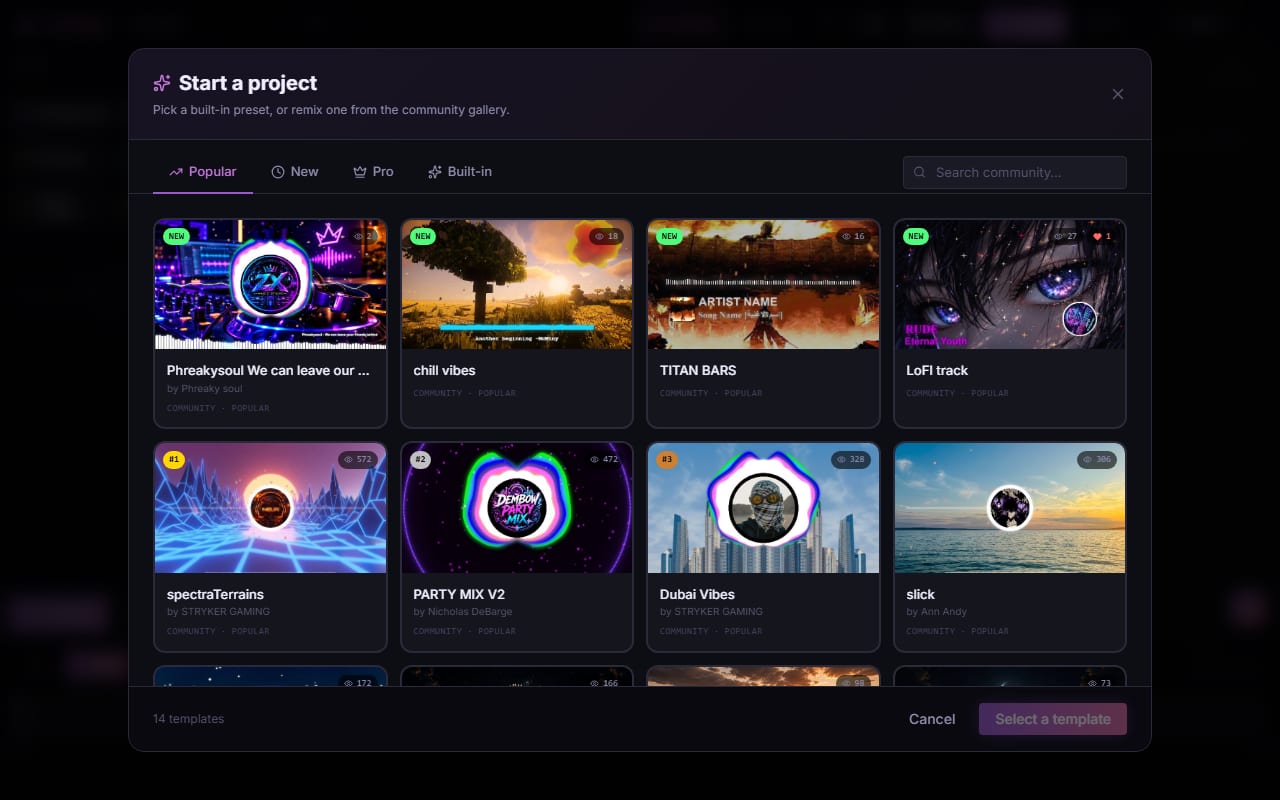
Choose motion that is circular, pulsing or evenly flowing, because those styles have no obvious start or end.
- Circular spectrums: the ring pulses in place, so the restart is hard to spot.
- Centred waveform bars on a still background: only the bars move, and they respond to every beat.
- Slow, evenly drifting backgrounds: slowly rotating or breathing shader and particle scenes.
Avoid particles that drift steadily from left to right, or any element that travels across the frame once. At the loop point the picture jumps back, and the cut is visible. Note that some elements, such as Circle Spectrum, Particles V3, 3D scenes and advanced effects, are Pro; they are fine in the editor, but exporting them needs Pro, or you can remove them and export.
Screenshot: shimga.app
How do you hide the loop point?
Start and end on the same beat
If your track is 120 BPM, one bar is 2 seconds, so four bars is exactly 8 seconds. Start the clip on beat 1 of a bar and end just before beat 1 of the bar after the clip. The beat grid then lines up when the video restarts. The BPM Finder gives you the tempo, and the BPM and beat sync guide explains how to work out bar lengths.
Use a short fade
A fade of about 0.3 seconds on any text or logo at the edges of the clip hides small mismatches. Because Canvas plays without sound, the visual alone must feel continuous.
Prefer shorter and simpler
A 4 or 6 second loop with one clear motion is easier to make seamless than an 8 second scene with several moving parts.
What bitrate and settings keep the file small?
Use 1080 x 1920, 30 fps and about 4000 kbps for an 8 second clip. If the file is too big, drop the bitrate to 3000 kbps or shorten the clip to 6 seconds. Do not export at 4K and downscale; it only costs render time and Canvas cannot use the extra pixels.
Branding tips for a muted 8 second video
- Show the artist name once, briefly, near the start, or leave it out and let your logo carry it.
- Make the visual pulse on the beat so it still feels musical when the phone is on silent.
- Pull two or three colours from the single's artwork.
- Do not put lyrics on Canvas; the player controls sit on top and obscure text.
Photo: George Milton on Pexels
Common mistakes
- A visible cut at the loop point. Re-export with a clip length that ends on the starting beat.
- The file is too large. Lower the bitrate or shorten the clip.
- Wrong aspect ratio. A 16:9 or square video does not suit the vertical layout; export 9:16.
- Too much detail. Test on a phone; busy scenes get lost under the Spotify interface.
For ratios on other platforms, read music video aspect ratios, and see the Spotify Canvas maker page and Spotify Canvas maker how-to.
Frequently asked questions
How do I make a Spotify Canvas loop smoothly?
Cut the clip so it starts and ends on the same beat of the bar, use a circular or pulsing visual with no one-way motion, and add a very short fade on any text or logo at the edges.
What size should a Spotify Canvas video be?
Export 1080 x 1920 (9:16) as an MP4 of 3 to 8 seconds, under 8 MB. 720 x 1280 is the minimum. There is no benefit to exporting 4K.
What bitrate should I use to stay under 8 MB?
About 4000 kbps at 30 fps for an 8 second clip gives roughly 4 MB. If the file is still too large, lower the bitrate to 3000 kbps or shorten the clip.
Does the Canvas need audio?
No. Canvas plays muted behind your song, so the audio in the file is not used. Shimga's export includes the audio track, which is fine for upload.
Do I need Pro to export a Canvas?
Not for a standard scene. Pro is only needed for Pro elements, Pro templates or videos over five minutes.